C# Windows Formsで天気チェッカーを作る|HttpClient・JSON・非同期処理をやさしく解説
Windows Formsで「都道府県を選ぶと今日の天気アイコンを表示する」アプリを題材に、Dictionary、HttpClient、JSON解析、イベント処理を学びます。後半では、通信中も画面を固めない非同期処理へ段階的にリファクタリングします。
- 1. このアプリの処理の流れ
- 2. 元コード
- 3. Dictionaryで都道府県と都市コードを対応させる
- 4. foreachでComboBoxへ都道府県名を追加する
- 5. 選択イベントから都市コードを取得する
- 6. HttpClientで天気情報を取得する
- 7. JSONからアイコンURLを取り出す
- 8. 元コードで改善したい点
- 9. リファクタリング1:名前と初期化を分かりやすくする
- 10. リファクタリング2:TryGetValueで安全に検索する
- 11. リファクタリング3:asyncとawaitで画面を固めない
- 12. リファクタリング4:HttpClientを再利用する
- 13. 改善後の完成コード
- 14. 不要なusingを整理する
- 15. 外部サービスを使うときの注意
- 16. 初学者向け練習問題
- 17. まとめ
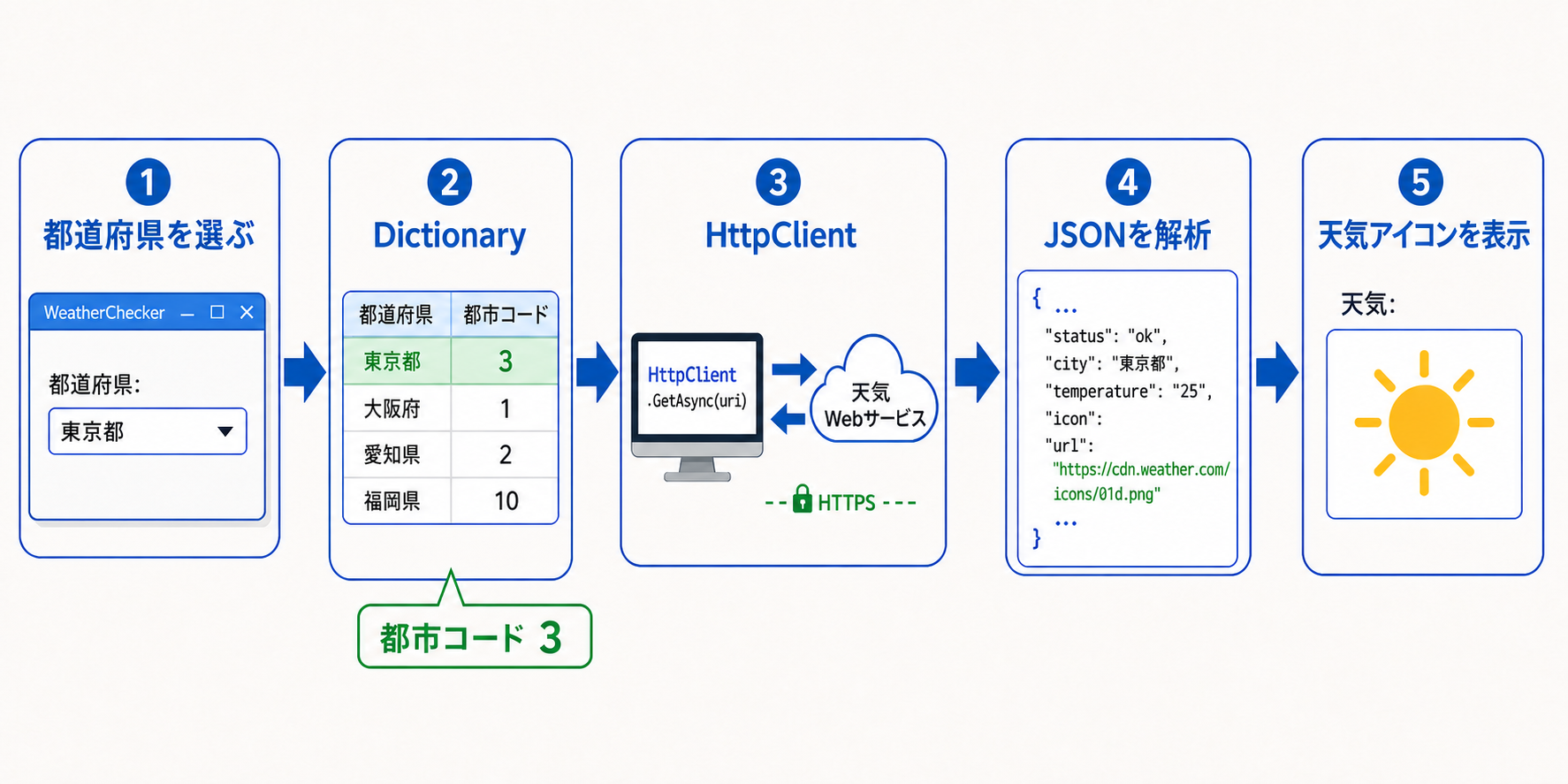
このアプリの処理の流れ
利用者が都道府県を選ぶと、アプリはDictionaryから都市コードを探します。そのコードをWebサービスへ送り、返されたJSONから天気アイコンのURLを取り出してPictureBoxへ表示します。
- ComboBoxで都道府県を選ぶ
- Dictionaryから都市コードを取得する
- HttpClientで天気情報サービスへアクセスする
- 返されたJSONをJObjectで解析する
- PictureBoxに天気アイコンを表示する
元コード
using System;
using System.Collections.Generic;
using System.ComponentModel;
using System.Data;
using System.Drawing;
using System.Linq;
using System.Text;
using System.Threading.Tasks;
using System.Windows.Forms;
using System.Net.Http;
using Newtonsoft.Json.Linq;

namespace WeatherChecker
{
    public partial class Form1 : Form
    {
        Dictionary<string, string> cityNames;

        public Form1()
        {
            InitializeComponent();

            this.cityNames = new Dictionary<string, string>();

            this.cityNames.Add("東京都", "3");
            this.cityNames.Add("大阪府", "1");
            this.cityNames.Add("愛知県", "2");
            this.cityNames.Add("福岡県", "10");

            foreach (KeyValuePair<string, string> data in this.cityNames)
            {
                areaBox.Items.Add(data.Key);
            }
        }

        private void CitySelected(object sender, EventArgs e)
        {
            string cityCode = cityNames[areaBox.Text];
            string url =
                "https://example.com/weatherCheck.php?city=" +
                cityCode;

            HttpClient client = new HttpClient();
            string result = client.GetStringAsync(url).Result;

            JObject jobj = JObject.Parse(result);
            string todayWeatherIcon = (string)((jobj["url"] as JValue).Value);
            weatherIcon.ImageLocation = todayWeatherIcon;
        }

        private void ExitMenuClicked(object sender, EventArgs e)
        {
            this.Close();
        }
    }
}
Dictionaryで都道府県と都市コードを対応させる
Dictionary<string, string> のキーは都道府県名、値はWebサービスへ渡す都市コードです。画面に表示する言葉と、通信で使用する値を分けて管理できます。
this.cityNames.Add("東京都", "3");
this.cityNames.Add("大阪府", "1");
this.cityNames.Add("愛知県", "2");
this.cityNames.Add("福岡県", "10");
Dictionaryの値は、この天気情報サービスが決めた識別コードです。一般的な都道府県コードとは限りません。
foreachでComboBoxへ都道府県名を追加する
foreach (KeyValuePair<string, string> data in cityNames)
{
    areaBox.Items.Add(data.Key);
}
data.Key は都道府県名、data.Value は都市コードです。画面には利用者が読める都道府県名だけを追加します。
選択イベントから都市コードを取得する
string cityCode = cityNames[areaBox.Text];areaBox.Text をキーとしてDictionaryを検索します。ただし、何も選ばれていない場合やキーが存在しない場合、角括弧による検索は例外になる可能性があります。後半では TryGetValue に変更します。
HttpClientで天気情報を取得する
この記事のURLには説明用の
example.comを使用しています。実際に動かす場合は、利用許可を得た天気情報サービスのURLへ置き換えてください。
string url =
    "https://example.com/weatherCheck.php?city=" +
    cityCode;

HttpClient client = new HttpClient();
string result = client.GetStringAsync(url).Result;
GetStringAsync は通信結果を文字列として取得します。名前にAsyncとあるとおり非同期メソッドですが、元コードでは最後に .Result を付けて完了まで同期的に待っています。
画面を担当するスレッドで
.Resultを使うと、通信が終わるまで画面が反応しなくなったり、条件によっては処理が進まなくなったりします。Windows Formsでは基本的にawaitを使います。
JSONからアイコンURLを取り出す
JObject jobj = JObject.Parse(result);
string todayWeatherIcon = (string)((jobj["url"] as JValue).Value);
weatherIcon.ImageLocation = todayWeatherIcon;
JObject.Parse はJSON文字列を、プロパティ名から値を探せるオブジェクトへ変換します。ここでは url プロパティを読み、そのURLをPictureBoxの ImageLocation に設定しています。
元コード
JObject jobj = JObject.Parse(result);
string todayWeatherIcon =
    (string)((jobj["url"] as JValue).Value);
改善後
string json = await httpClient.GetStringAsync(url);
JObject weather = JObject.Parse(json);
string iconUrl = (string)weather["url"];
JSONの url を文字列として取得する目的は同じです。処理内容を大きく変えたのではなく、非同期処理と読みやすさを改善しています。
.Resultをawaitへ変更し、通信中に画面が固まりにくくしました。resultを内容が分かるjsonへ改名しました。jobjを天気情報だと分かるweatherへ改名しました。JValueへ変換して.Valueを読む処理を、JTokenからstringへの明示的変換に簡略化しました。todayWeatherIconを、その値がURLだと分かるiconUrlへ改名しました。
urlがない場合も確認する書き方
JToken urlToken = weather["url"];
string iconUrl = urlToken?.ToString();

if (string.IsNullOrWhiteSpace(iconUrl))
{
    throw new JsonException("JSONにurlがありません。");
}外部サービスのJSONは、項目がない場合や形式が変わる場合があります。urlToken?.ToString() と空文字チェックを使うと、原因の分かる例外を発生させられます。
元コードで改善したい点
| 現在の書き方 | 起こり得ること | 改善方法 |
|---|---|---|
cityNames[areaBox.Text] | 未選択や不正なキーで例外 | TryGetValue |
.Result | 通信中に画面が固まる | await |
| イベント内に全処理 | 長くなりテストしにくい | 通信処理を別メソッドへ分離 |
| 通信・JSONの例外処理なし | 回線や形式の問題でアプリが終了 | try-catch |
| 選択ごとにHttpClientを生成 | 接続管理が非効率 | 1つを再利用 |
リファクタリング1:名前と初期化を分かりやすくする
private readonly Dictionary<string, string> cityCodes
    = new Dictionary<string, string>
    {
        { "東京都", "3" },
        { "大阪府", "1" },
        { "愛知県", "2" },
        { "福岡県", "10" }
    };
cityNames では値の意味が分かりにくいため、cityCodes とします。宣言と初期データを同じ場所にまとめ、readonly で別のDictionaryへの入れ替えを防ぎます。
リファクタリング2:TryGetValueで安全に検索する
string selectedCity = areaBox.SelectedItem?.ToString();

if (selectedCity == null ||
    !cityCodes.TryGetValue(selectedCity, out string cityCode))
{
    return;
}
選択項目がない場合とDictionaryにキーがない場合を、例外ではなく通常の分岐として扱えます。
リファクタリング3:asyncとawaitで画面を固めない
private async void CitySelected(object sender, EventArgs e)
{
    string iconUrl = await GetWeatherIconUrlAsync(cityCode);
    weatherIcon.LoadAsync(iconUrl);
}
async void は通常避けますが、戻り値を受け取る仕組みがないイベントハンドラーでは使用できます。通信を担当する通常のメソッドは Task<string> を返します。
リファクタリング4:HttpClientを再利用する
private static readonly HttpClient httpClient = new HttpClient();HttpClientはリクエストのたびに作り直すのではなく、アプリ内で共有して再利用します。
改善後の完成コード
using System;
using System.Collections.Generic;
using System.Net.Http;
using System.Threading.Tasks;
using System.Windows.Forms;
using Newtonsoft.Json;
using Newtonsoft.Json.Linq;

namespace WeatherChecker
{
    public partial class Form1 : Form
    {
        private static readonly HttpClient httpClient = new HttpClient();

        private readonly Dictionary<string, string> cityCodes
            = new Dictionary<string, string>
            {
                { "東京都", "3" },
                { "大阪府", "1" },
                { "愛知県", "2" },
                { "福岡県", "10" }
            };

        public Form1()
        {
            InitializeComponent();
            DisplayCityNames();
        }

        private void DisplayCityNames()
        {
            areaBox.Items.Clear();

            foreach (string cityName in cityCodes.Keys)
            {
                areaBox.Items.Add(cityName);
            }
        }

        private async void CitySelected(object sender, EventArgs e)
        {
            string selectedCity = areaBox.SelectedItem?.ToString();

            if (selectedCity == null ||
                !cityCodes.TryGetValue(selectedCity, out string cityCode))
            {
                return;
            }

            try
            {
                areaBox.Enabled = false;
                string iconUrl = await GetWeatherIconUrlAsync(cityCode);
                weatherIcon.LoadAsync(iconUrl);
            }
            catch (HttpRequestException)
            {
                MessageBox.Show("天気情報を取得できませんでした。");
            }
            catch (JsonException)
            {
                MessageBox.Show("天気情報の形式が正しくありません。");
            }
            finally
            {
                areaBox.Enabled = true;
            }
        }

        private static async Task<string> GetWeatherIconUrlAsync(string cityCode)
        {
            string url =
                "https://example.com/weatherCheck.php?city=" +
                cityCode;

            string json = await httpClient.GetStringAsync(url);
            JObject weather = JObject.Parse(json);
            string iconUrl = (string)weather["url"];

            if (string.IsNullOrWhiteSpace(iconUrl))
            {
                throw new JsonException("urlがありません。");
            }

            return iconUrl;
        }

        private void ExitMenuClicked(object sender, EventArgs e)
        {
            Close();
        }
    }
}
メソッドの役割
| メソッド | 役割 |
|---|---|
DisplayCityNames | 都道府県名をComboBoxへ表示 |
CitySelected | 選択を受け取り、画面表示を更新 |
GetWeatherIconUrlAsync | 通信とJSON解析を担当 |
ExitMenuClicked | フォームを閉じる |
不要なusingを整理する
元コードにある System.ComponentModel、System.Data、System.Drawing、System.Text などは、このファイルで型を直接使っていなければ削除できます。必要なusingだけにすると、依存関係が読み取りやすくなります。
外部サービスを使うときの注意
- インターネットに接続できない場合がある
- サービスが一時停止する場合がある
- JSONの項目名や形式が変更される場合がある
- URLがHTTPSに対応しているか確認する
- 利用規約やアクセス回数の制限を確認する
通信は必ず成功するものではありません。失敗を想定して、利用者へ分かるメッセージを表示することが大切です。
初学者向け練習問題
先に自分でコードを書いてから「サンプル回答」を開いてください。
練習1:北海道を追加する
DictionaryとComboBoxへ北海道を追加してみましょう。都市コードは利用するサービスの仕様を確認して入力します。
cityCodes.Add("北海道", "追加する都市コード");
areaBox.Items.Add("北海道");
同じ都道府県名を2回追加すると例外になります。また、都市コードは一般的な番号ではなく、利用するサービスの仕様に合わせてください。
練習2:選択した都市コードを表示する
TryGetValue を使い、選択中の都市コードをMessageBoxへ表示してみましょう。
private void ShowSelectedCityCode()
{
    string city = areaBox.SelectedItem?.ToString();

    if (city != null && cityCodes.TryGetValue(city, out string code))
    {
        MessageBox.Show($"都市コードは {code} です。");
    }
}
選択項目と検索結果の両方を確認することで、キーがない場合も安全に処理できます。
練習3:通信状態をLabelに表示する
通信中・成功・失敗をLabelで利用者へ知らせてみましょう。
private async void CitySelected(object sender, EventArgs e)
{
    string city = areaBox.SelectedItem?.ToString();

    if (city == null || !cityCodes.TryGetValue(city, out string code))
    {
        return;
    }

    statusLabel.Text = "読み込み中...";

    try
    {
        string iconUrl = await GetWeatherIconUrlAsync(code);
        weatherIcon.LoadAsync(iconUrl);
        statusLabel.Text = "取得しました";
    }
    catch (Exception)
    {
        statusLabel.Text = "取得に失敗しました";
    }
}
フォームに statusLabel というLabelを配置した例です。実際のコントロール名に合わせて変更してください。
練習4:通信中の連続選択を防ぐ
通信中はComboBoxを無効にし、終了後に戻してみましょう。
private async void CitySelected(object sender, EventArgs e)
{
    if (!cityCodes.TryGetValue(areaBox.Text, out string code))
    {
        return;
    }

    try
    {
        areaBox.Enabled = false;
        string iconUrl = await GetWeatherIconUrlAsync(code);
        weatherIcon.LoadAsync(iconUrl);
    }
    finally
    {
        areaBox.Enabled = true;
    }
}
finally は成功・失敗のどちらでも実行されるため、コントロールを元に戻す処理に向いています。
練習5:取得結果をキャッシュする
一度取得した都市コードのアイコンURLをDictionaryへ保存し、同じ選択では通信しないようにしてみましょう。
private readonly Dictionary<string, string> iconCache
    = new Dictionary<string, string>();

private async Task<string> GetCachedIconUrlAsync(string cityCode)
{
    if (iconCache.TryGetValue(cityCode, out string cachedUrl))
    {
        return cachedUrl;
    }

    string iconUrl = await GetWeatherIconUrlAsync(cityCode);
    iconCache[cityCode] = iconUrl;
    return iconUrl;
}
最初にキャッシュを検索し、なければ通信して保存します。ただし、天気は変化するため、本格的なアプリでは保存時刻と有効期限も必要です。
まとめ
- Dictionaryで表示名とサービス用コードを対応付けられる
- HttpClientでWebサービスから文字列を取得できる
- JObjectでJSONのプロパティを取り出せる
- Windows Formsの通信処理では
.Resultではなくawaitを使う - TryGetValueと例外処理で失敗に強くできる
- 通信・解析・画面表示を分けると読みやすくテストしやすい
Web APIを使うアプリでは、正常に動く道筋だけでなく、未選択・通信失敗・JSONの変更も考える必要があります。まず小さく動かし、その後に責務を分けて安全にする流れで理解を深めましょう。